DOC 01GETTING STARTED
Your first simulation
This walkthrough takes one session from an empty scene to a ground-truth camera frame and a graded task. Every step uses the application's own controls. It takes about ten minutes.
-
Start LEVIATHAN
Open the application. It starts the local simulation service, or connects to one that is already running. Once the service is reachable, the toolbar shows Connected. If your installation offers it, you can sign in with an Azarel account or continue without one. The application opens on the Viewport.
-
Choose a scene
Open Scene in the Viewport toolbar and pick an Ocean preset, for example Pipeline. A preset sets the scene's structure model, its analytic environment, a current and a turbidity. You can adjust turbidity, sea state and current afterwards. Large scanned models take a few seconds to load, and a note at the bottom of the view says when one is loading.
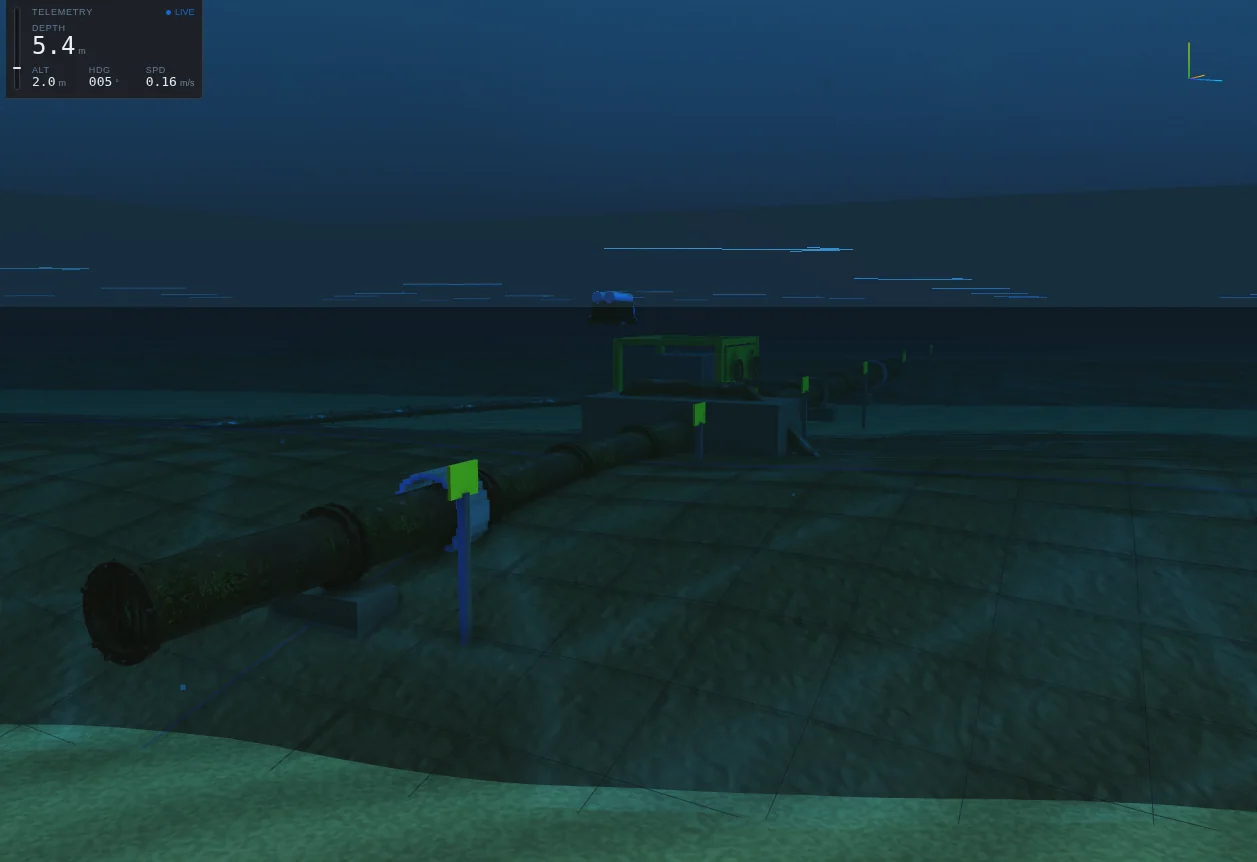
Figure 1.1 The Pipeline scene: a subsea work site with flowlines, a manifold, valves and anodes. -
Choose a vehicle
Open Vehicle and pick from the nine built-in vehicles. Each entry shows its class, for example Torpedo AUV — survey AUV · fin. Press Frame to centre the camera on it. To bring your own robot, see Custom vehicles.
-
Turn on sensors
Open Sensors and switch on the payload you need. Acoustic footprints and beams are drawn on the vehicle, and the Stage dock gains a Sensor payload card with one tab per active sensor: the sonar sector, the bathymetric profile, the USBL fix, the DVL bottom lock.
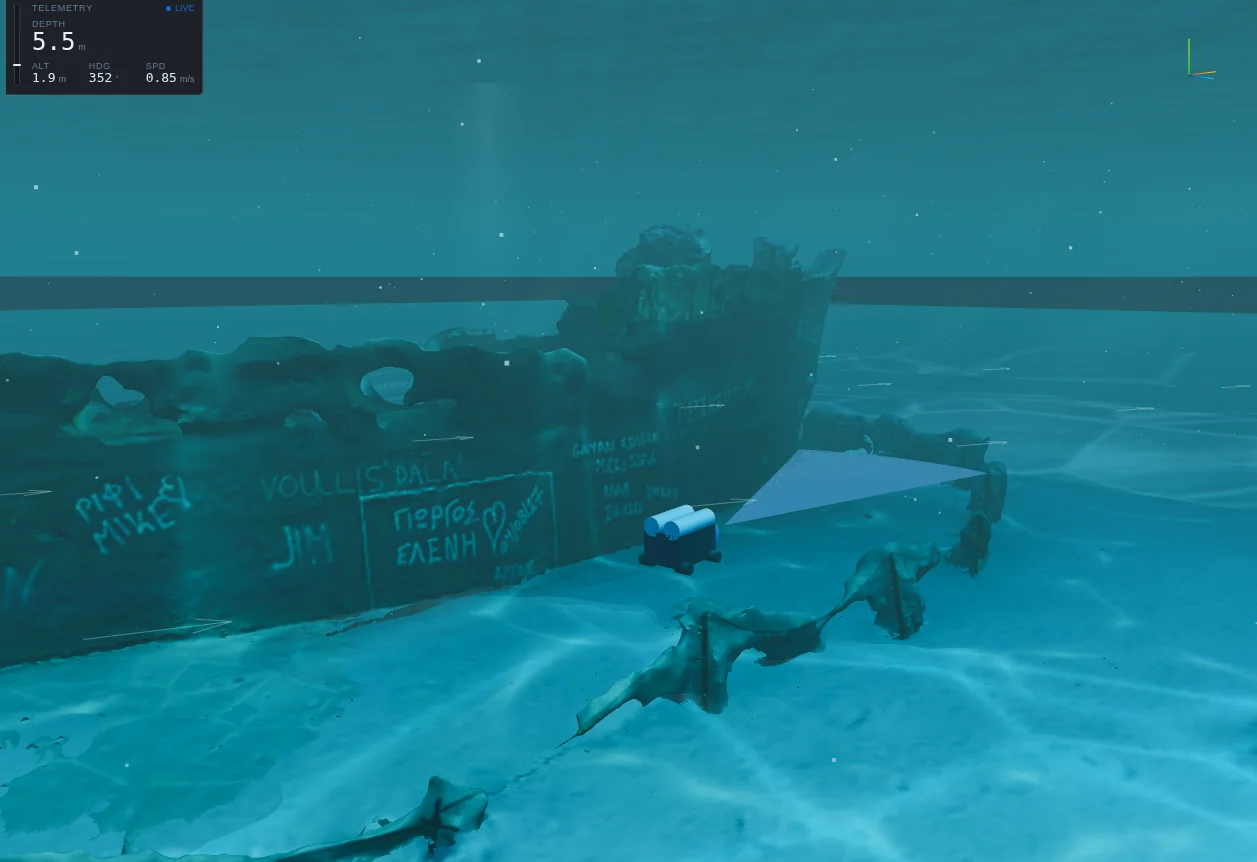
Figure 1.2 The imaging-sonar fan drawn from the vehicle in the Shipwreck scene. -
Capture a ground-truth camera frame
Switch on Camera in the Sensors menu. The Camera section shows a live feed in RGB, depth or segmentation mode, with its field of view and range. Below it, the Perception section captures a PerceptionFrame: a scientific camera frame computed by the simulation service from the same pose.
- Pick a Resolution, plus a Seed and Frame index if you need them.
- For radiometric images, turn on Simulate light, then choose a Water type and an Ambient sky model. LEVIATHAN has no default ambient model, so you must choose one.
- Press Capture. The panel reports how many pixels are valid and whether the capture is complete. When it is incomplete, it lists what the frame could not represent.
Use the Output buttons to view each channel in the monitor at the bottom right: clean, underwater and sensor images, albedo, semantic and instance labels, z-depth, range and normals.
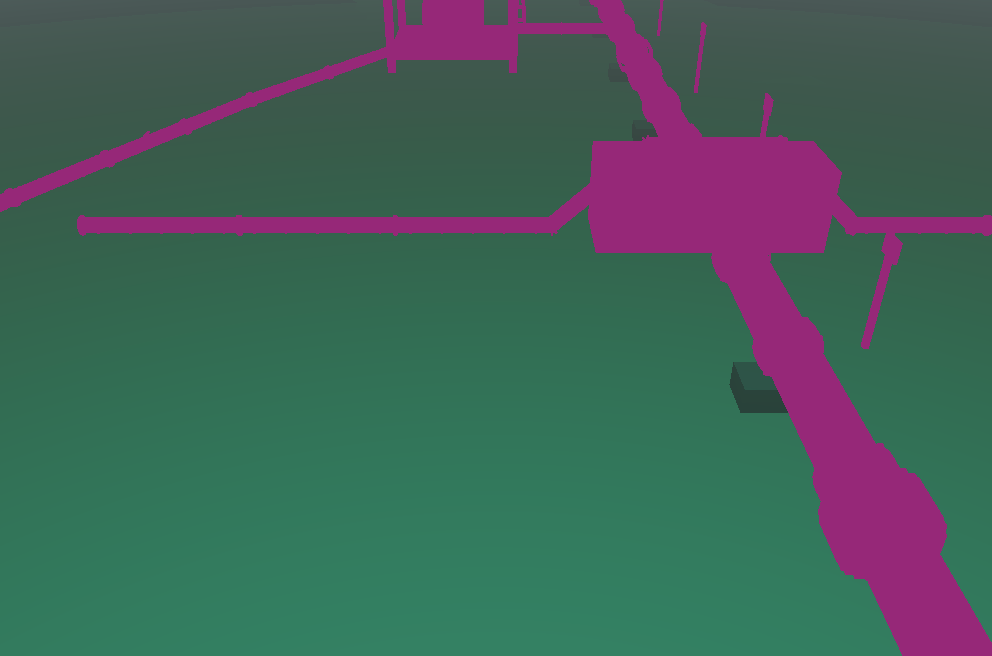
ReflectanceScene models carry display colours, not measured reflectance. With Simulate light on, a capture is refused until reflectance comes from somewhere. You can enable Estimated reflectance under Sensor and materials, which uses the display palette and records it as unmeasured. Surfaces with no reflectance at all are marked in magenta and carry no radiometric values. See Radiometric validity.
Underwater 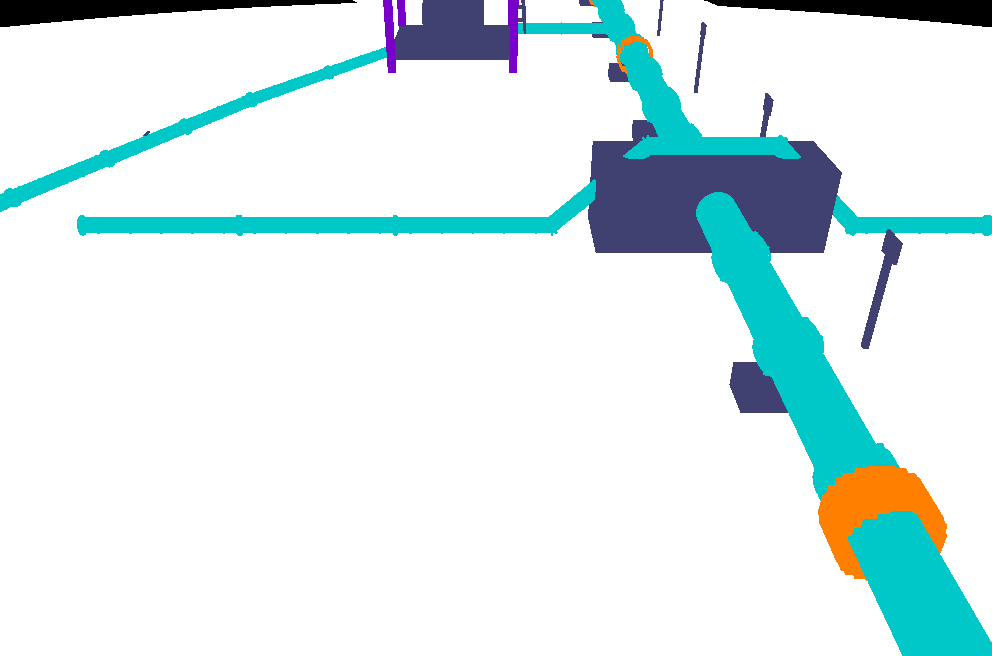
Semantic 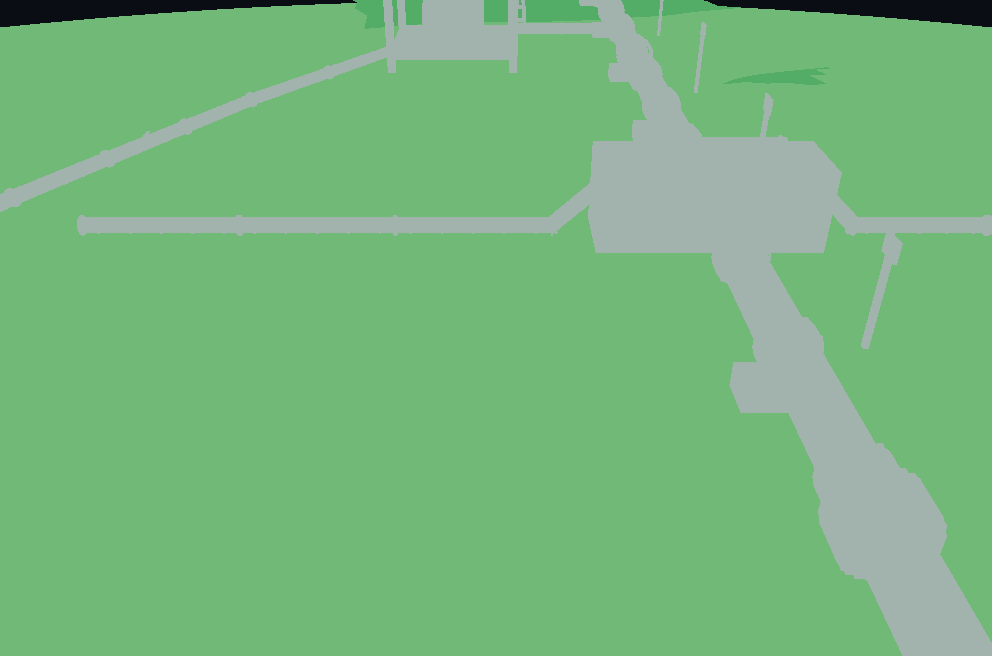
Instance 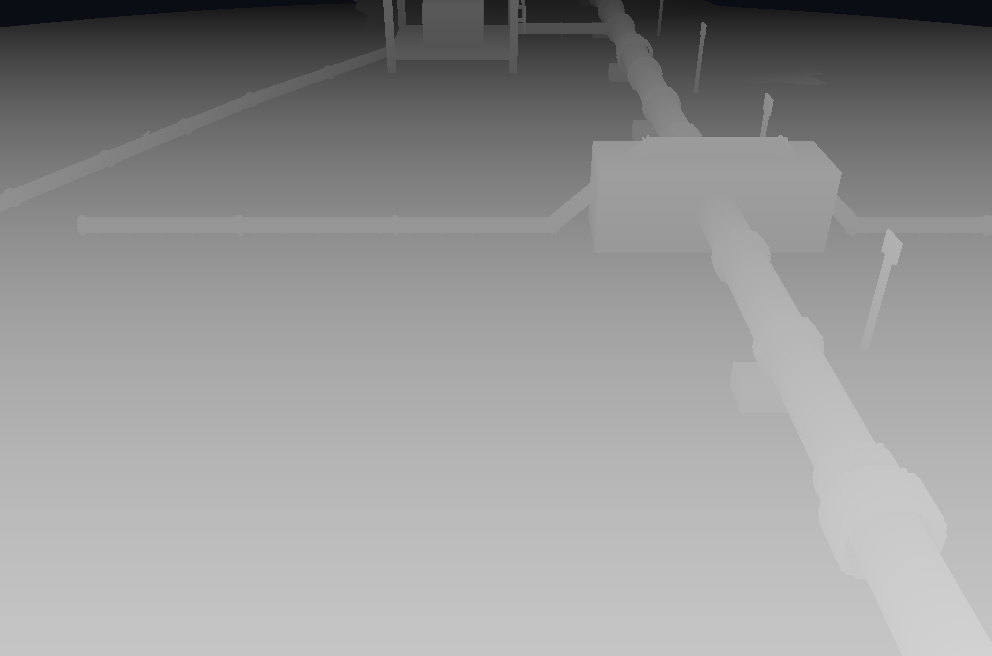
Z-depth 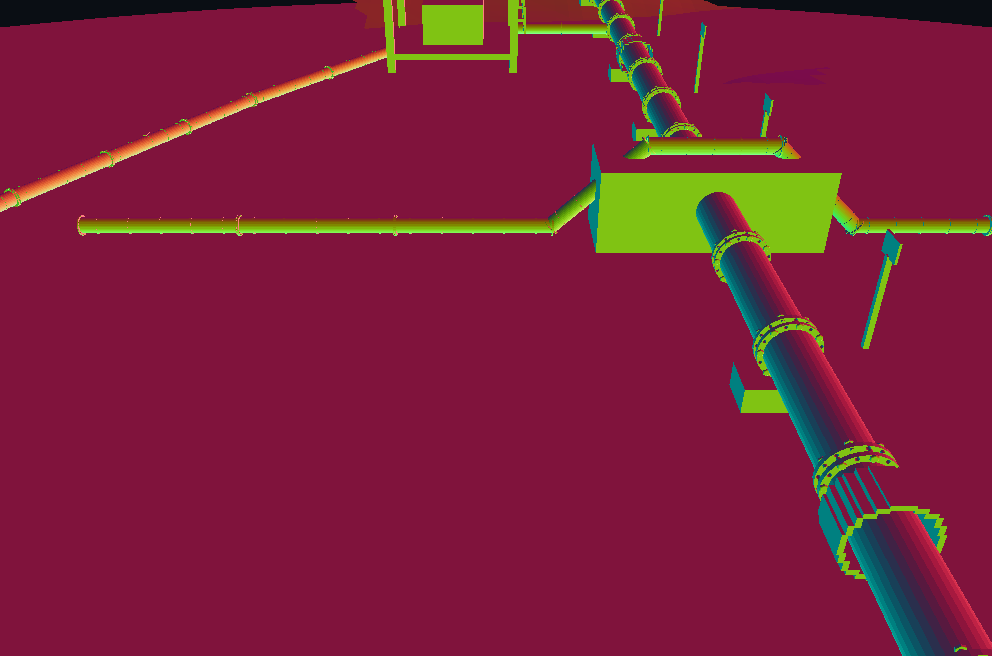
Normals Five of the outputs from one capture. Camera and optics shows them full size and explains each one.
-
Export the frame
Under Export, Frame downloads the native frame archive, which is the authoritative record. COCO, KITTI, Z-depth and Range produce derived views. + Sequence adds the capture to a sequence that Dataset then exports as one native dataset. See Synthetic data and export.
-
Grade a task
Switch to the Dashboard, choose + Panel and open Grade suite. Choose a vehicle, leave the policy as baseline (the built-in analytic controllers) or paste an exported policy, and press Run suite. Each task gets PASS, PARTIAL or FAIL. A stage-mix bar shows how its episodes ended: never engaged, engaged but not acquired, acquired then lost, or succeeded.
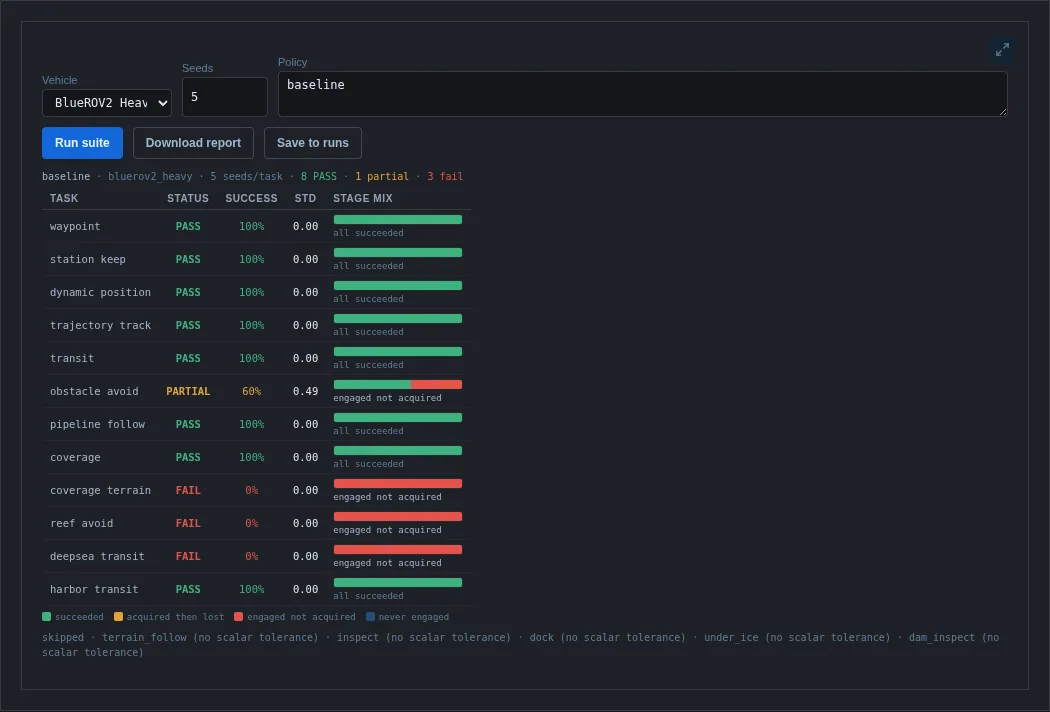
Figure 1.3 Grade suite for the BlueROV2 Heavy with the analytic baseline, five seeds per task. Tasks without a scalar success tolerance are listed as skipped rather than given a verdict.
Next steps
- Learn what each scene represents in Environments.
- Read how the camera forms its images in Camera and optics.
- Explore the analysis panels in Dashboard.