DOC 01GETTING STARTED
Application and workspaces
LEVIATHAN opens on five workspaces, selected from the tab bar below the menu: Code, Viewport, Dashboard, Hardware and Hull. Each one shares the same simulation service and the same vehicle and scene state. Earlier top-level areas, such as Simulate, Train, Evaluate, Sensors and Interfaces, now live as Dashboard panels or Viewport menus.
| Workspace | Use it to | Detail |
|---|---|---|
| Code | Edit project files, run commands in a terminal, work with language tooling | Below |
| Viewport | Build and watch the 3D scene: vehicle, structures, water, sensors and overlays; capture ground-truth camera frames | Below, First simulation |
| Dashboard | Open analysis panels for sensors, physics, charts, estimation, evaluation and interfaces | Dashboard |
| Hardware | Wire an electronics harness, generate firmware projects, run firmware on an emulated microcontroller | Hardware, HIL and interfaces |
| Hull | Analyse hull fouling, its fuel and carbon cost, and plan crawler cleaning and inspection | Hull |
Viewport
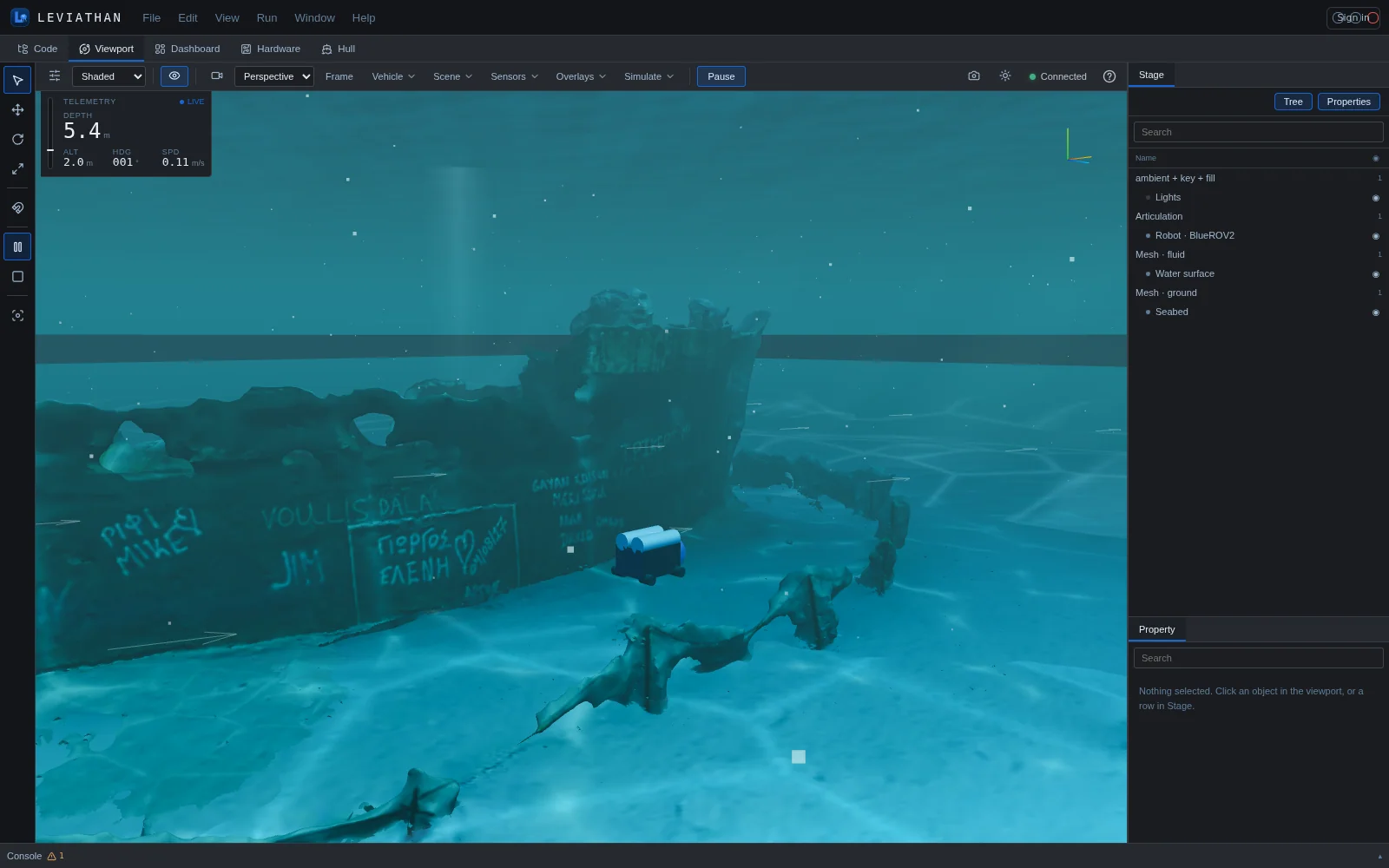
The Viewport is the 3D view of the simulation. A vehicle runs live in the selected scene, a telemetry readout in the top left shows depth, altitude, heading and speed, and the Stage dock on the right lists everything in the scene.
| Menu | Contents |
|---|---|
| Vehicle | Choose one of nine built-in vehicles; upload a CAD model (.glb, .gltf, .obj, .stl, .dae); import URDF, SDFormat or MJCF |
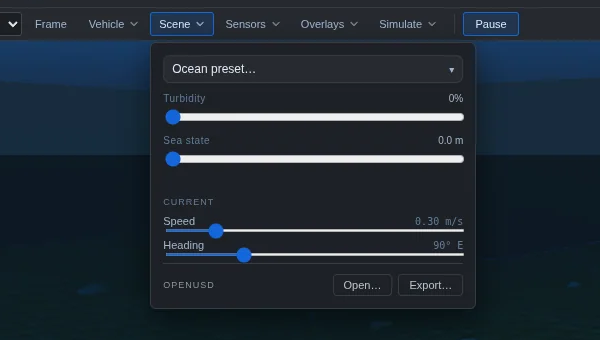
| Scene | Ocean preset (the nine built-in scenes), turbidity, sea state, current speed and heading; OpenUSD open and export |
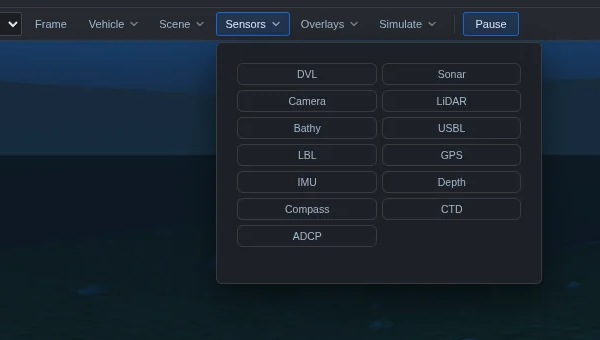
| Sensors | Toggle DVL, Sonar, Camera, LiDAR, Bathy, USBL, LBL, GPS, IMU, Depth, Compass, CTD and ADCP; the Camera section holds the PerceptionFrame capture controls |
| Overlays | Grid, Current, Velocity, Thrust, Buoyancy, Axes, Tether, Arm, Acoustic, Reef footprint |
| Simulate | Control mode (Station-keep, Transit, Dive, Rollout), multi-vehicle Fleet and Formation runs, and a buoyancy-driven Glide profile |
The left tool strip holds Select, Move, Rotate and Scale for objects in the scene, snapping, and play controls. Camera views are Perspective, Top, Front and Side, in Shaded or Wireframe display. A toolbar button saves a PNG of the view.
The Viewport is where the rest of LEVIATHAN becomes visible. A canonical World can be shown in it live (Show in Viewport in the Dashboard's World panel). Episodes from the learning panels and recorded trajectories from Replay play back in it. Its camera section captures scientific PerceptionFrames from the current pose, and its vehicle state drives the Dashboard's live panels.
Dashboard
The Dashboard is a tabbed workspace of analysis panels, 85 in all, grouped by subject and opened from + Panel. Panels follow a data source, by default the live Viewport, and share a playback timeline at the bottom with events, layouts and recordings.
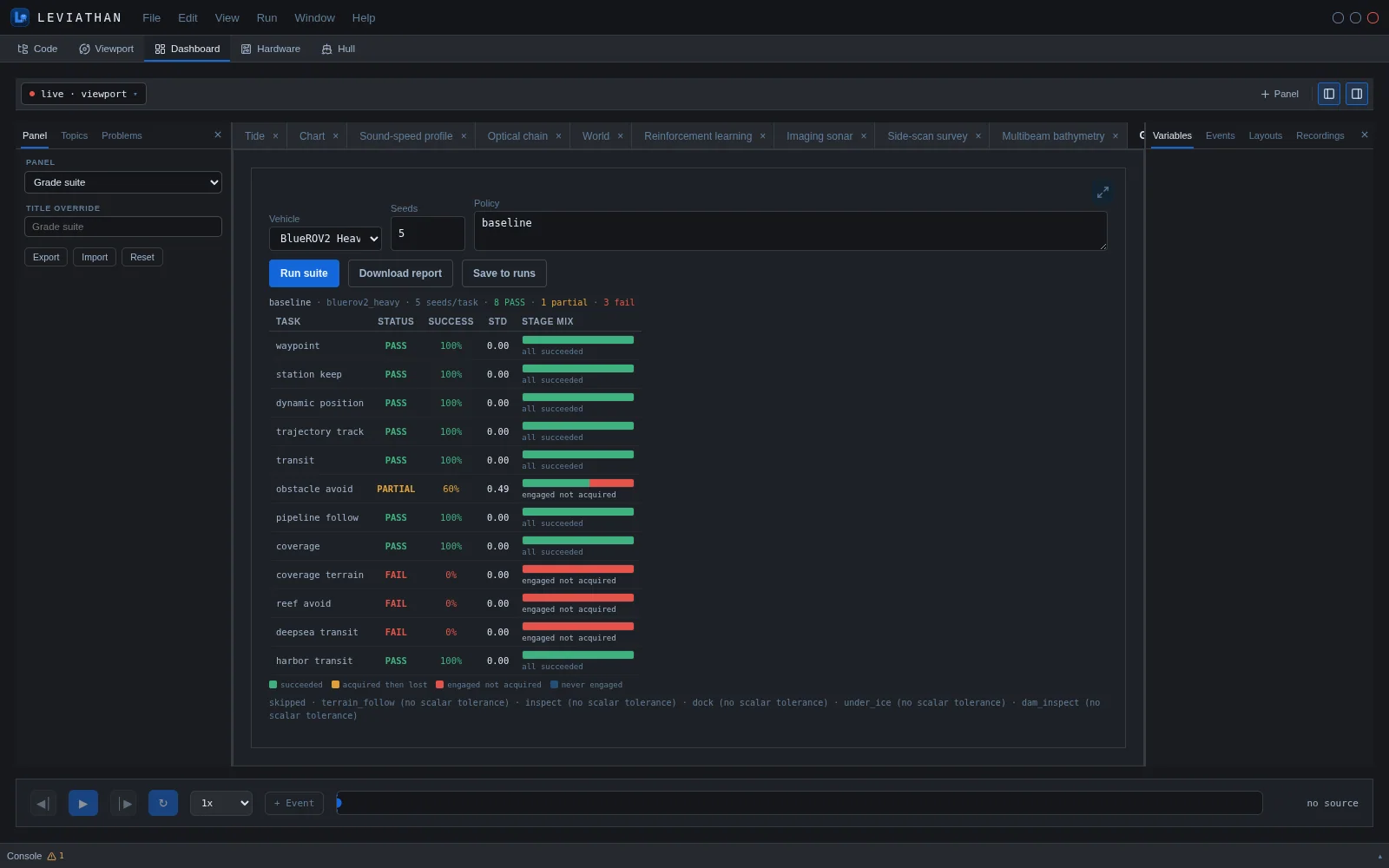
The tools that used to have their own tabs are panels here: ROS 2, SITL / HIL, Replay, Author, Scenario graph and Project, together with the former simulation, training, evaluation and sensor views. See Dashboard for the panel catalogue.
Hardware
The Hardware workspace is an electronics bench. Pick a board, place sensors and actuators from the parts library, wire them on a canvas, and check the harness for conflicts. Then generate a PlatformIO project and run compiled RP2040 firmware against simulated sensors.
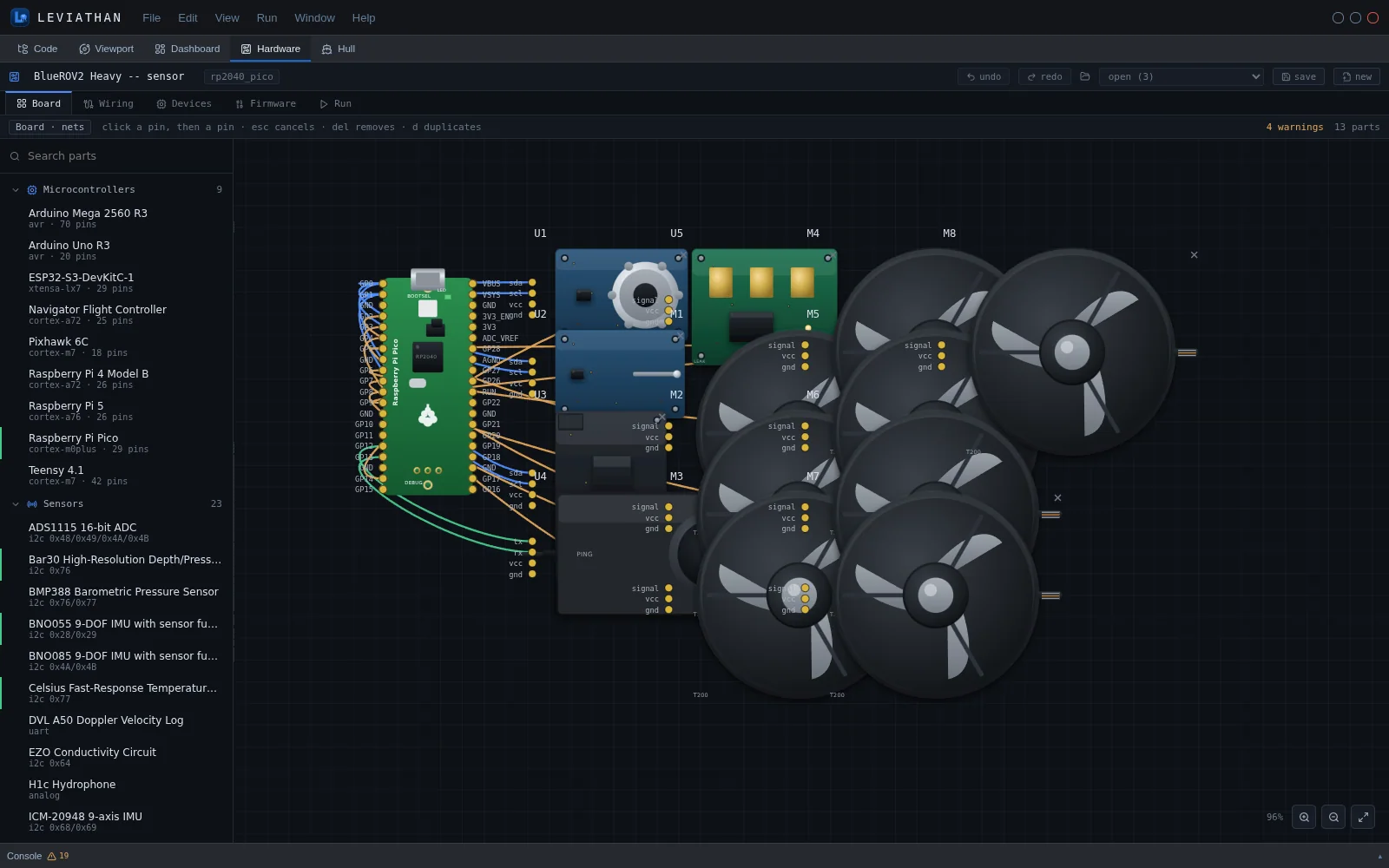
See Hardware, HIL and interfaces.
Hull
The Hull workspace evaluates a ship's hull as a working surface. It follows six steps: Hull, Voyage, Coating, Performance, Robots and Inspection. The workspace covers how fouling grows along a trading pattern, what it costs in power, fuel and carbon, and how a fleet of hull-cleaning crawlers would clean and inspect it.
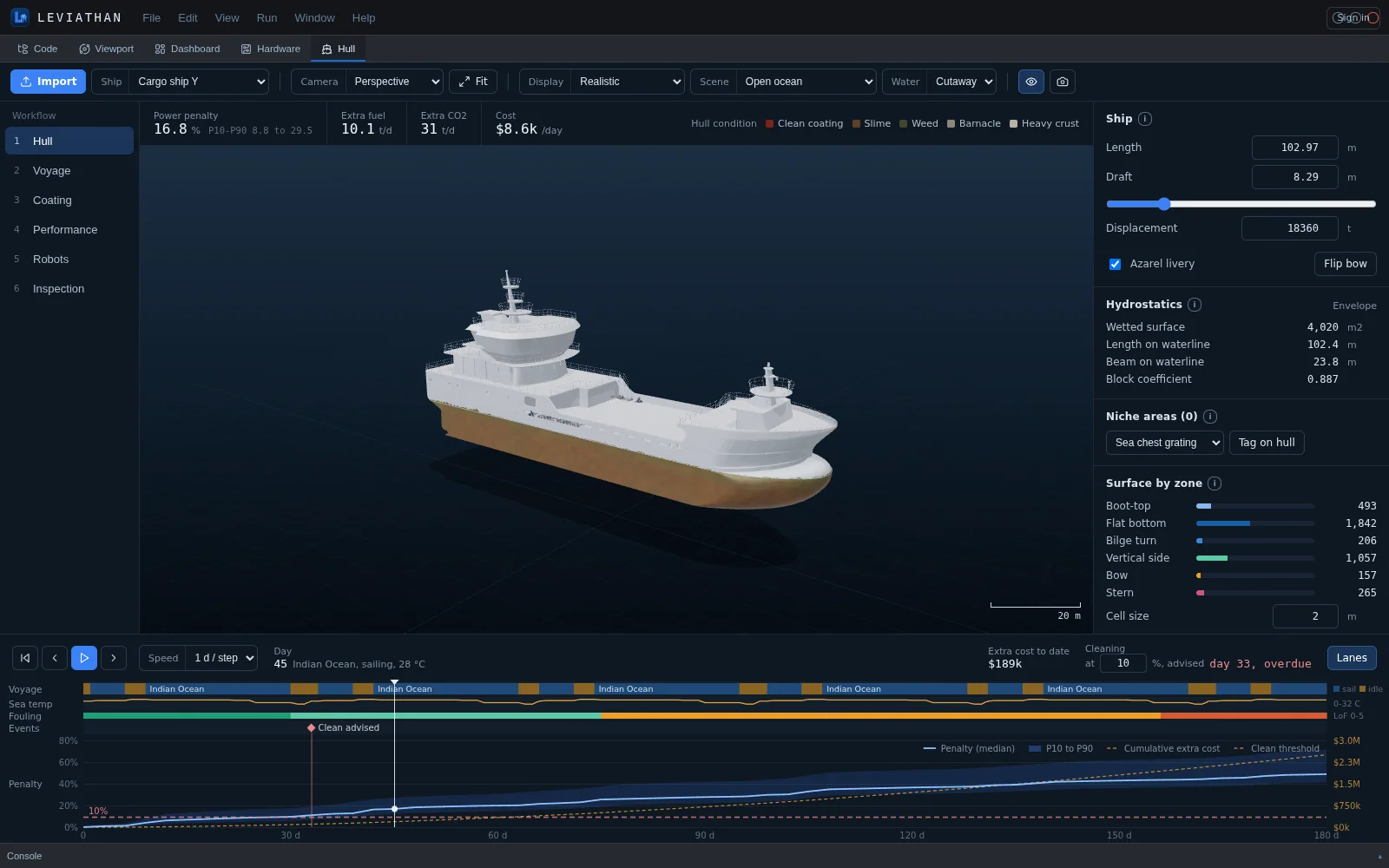
See Hull.
Code
The Code workspace is where you write the software that runs on, or against, your robot: autonomy, perception, training scripts and firmware. It has a file explorer, tabbed editing with diagnostics, quick fixes and formatting, a command palette, go-to-file, search, and integrated terminals.
- Projects. Open an existing folder as a project, or create a managed project and upload files into it. Every file operation is confined to the project's root folder. LEVIATHAN keeps only a small registry of projects; the folder remains the source of truth.
- Terminals. Real shell sessions in the project, streamed to the editor, with a choice of shell.
- Language tooling. Language servers for Python (pylsp, with ruff diagnostics), C and C++ (clangd, using the project's compile commands), CMake and YAML, when they are installed on the machine.
- Running a project. A project can declare a run command or a training entry point. The Dashboard's Training runs panel launches it as a local process, submits it to a Slurm cluster, or produces the job script as a dry run, then follows its metrics and checkpoints.
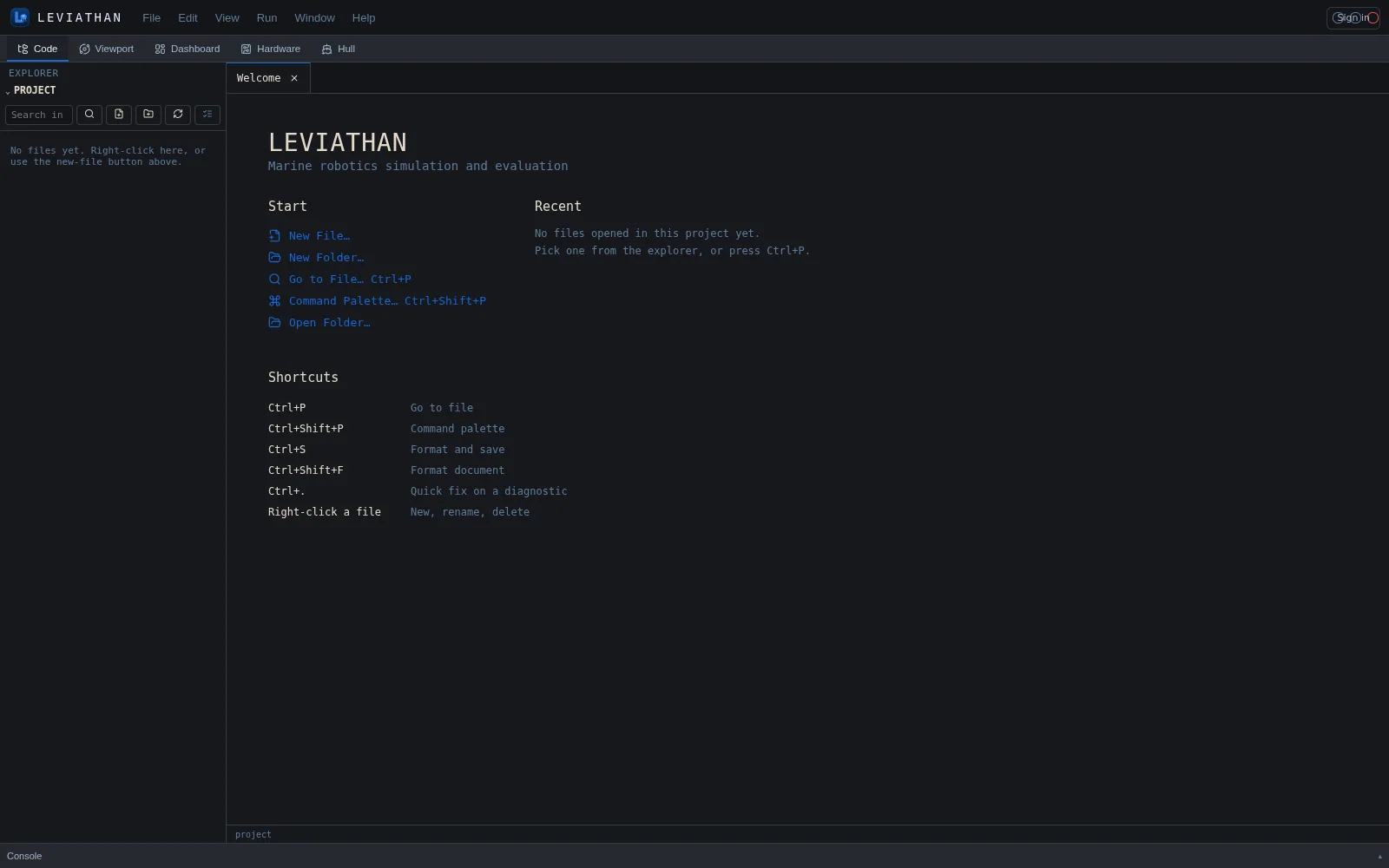
| Keys | Action |
|---|---|
| Ctrl+P | Go to file |
| Ctrl+Shift+P | Command palette |
| Ctrl+S | Format and save |
| Ctrl+Shift+F | Format document |
| Ctrl+. | Quick fix on a diagnostic |