DOC 02WORKSPACES
Code
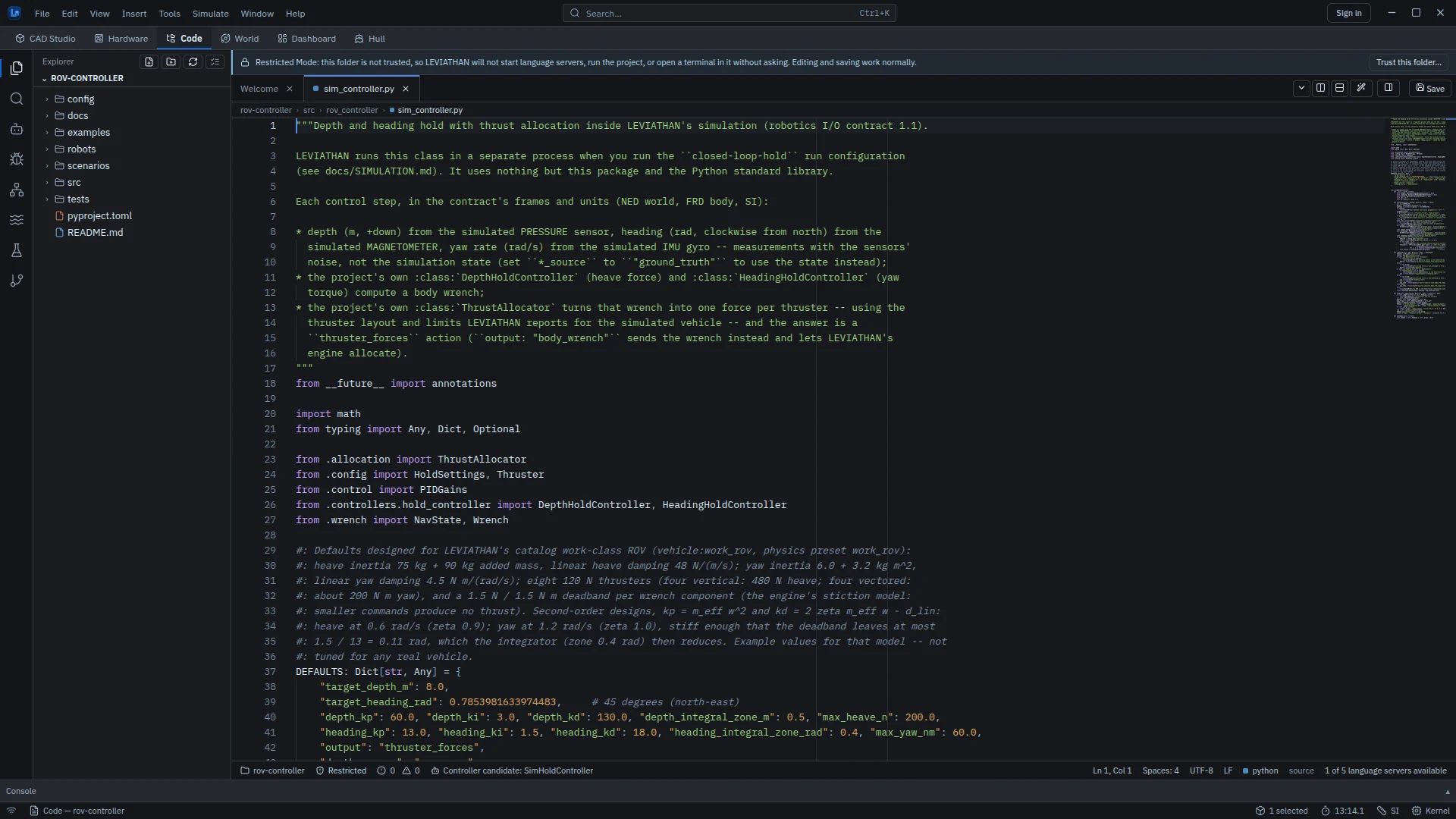
The Code workspace (Alt+3) is where you write the software that runs on, or against, your robot: controllers, autonomy, perception, training scripts and firmware. It is a full editor with an explorer, tabs and split editors, search, diagnostics, terminals, a debugger, tests and source control, plus tools built for robotics: project templates, run configurations that need your approval, controller simulations that run your code closed-loop against LEVIATHAN's physics, and ROS 2 inspection.
Layout
- Activity rail, far left: Explorer, Search, Robotics, Run and Debug, ROS 2, Simulation, Testing and Source Control. Each opens its view in the side bar (180–560 px wide; Ctrl+B hides it).
- Editor groups, centre: up to two, side by side or stacked (Ctrl+\). A tab's menu has Close, Close Others, Close Saved, Close All, Split Right, Split Down and Move to the other group.
- Dock, bottom, shared with the other workspaces: Output, Terminal, Problems and Debug Console.
- Status bar: the project, Restricted or Trusted, errors and warnings, recovered versions, the robotics context of the file, line and column, indentation, encoding, line endings, language, and how many language servers are connected.
The layout, open files and split state are restored the next time the project opens.
Projects and templates
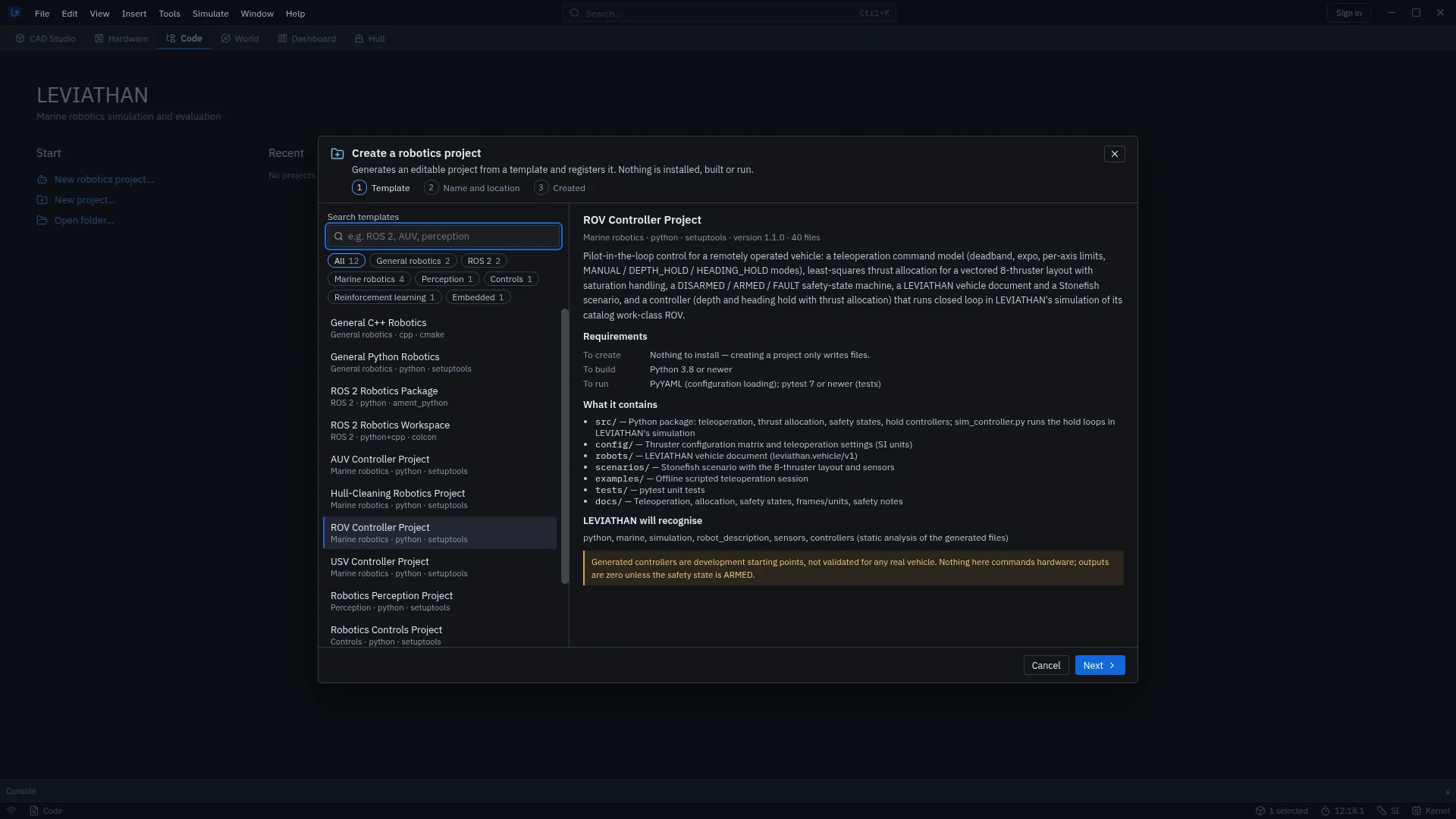
A project is a folder LEVIATHAN runs your code from. On the welcome page, New robotics project… opens a three-step wizard (template, name and location, created), New project… makes an empty one, and Open folder… opens an existing folder. Very broad folders, such as your home folder or a system directory, are refused. New projects go to ~/LeviathanProjects. Creating a project only writes files: nothing is installed, built or run.
| Category | Templates |
|---|---|
| General robotics | General Python Robotics; General C++ Robotics |
| ROS 2 | ROS 2 Robotics Package; ROS 2 Robotics Workspace |
| Marine robotics | ROV Controller (eight-thruster allocation, arming and safety states, depth and heading hold); AUV Controller (depth and heading); USV Controller (line-of-sight guidance); Hull-Cleaning Robotics |
| Perception, controls, learning | Robotics Perception; Robotics Controls (LQR and PID); Robotics Reinforcement Learning |
| Embedded | Embedded Robotics (firmware project) |
The ROV Controller template, for example, creates a configuration folder, vehicle and scenario files, a controller package (allocation, PID, depth and heading hold, safety states, teleoperation), 40 unit tests and three run configurations.
Restricted Mode and trust
Every folder opens in Restricted Mode. Editing and saving work normally, but LEVIATHAN does not start language servers, run the project, use Source Control or debug, and each terminal asks first. Those features all execute code from the folder, so they wait until you say the folder is yours.
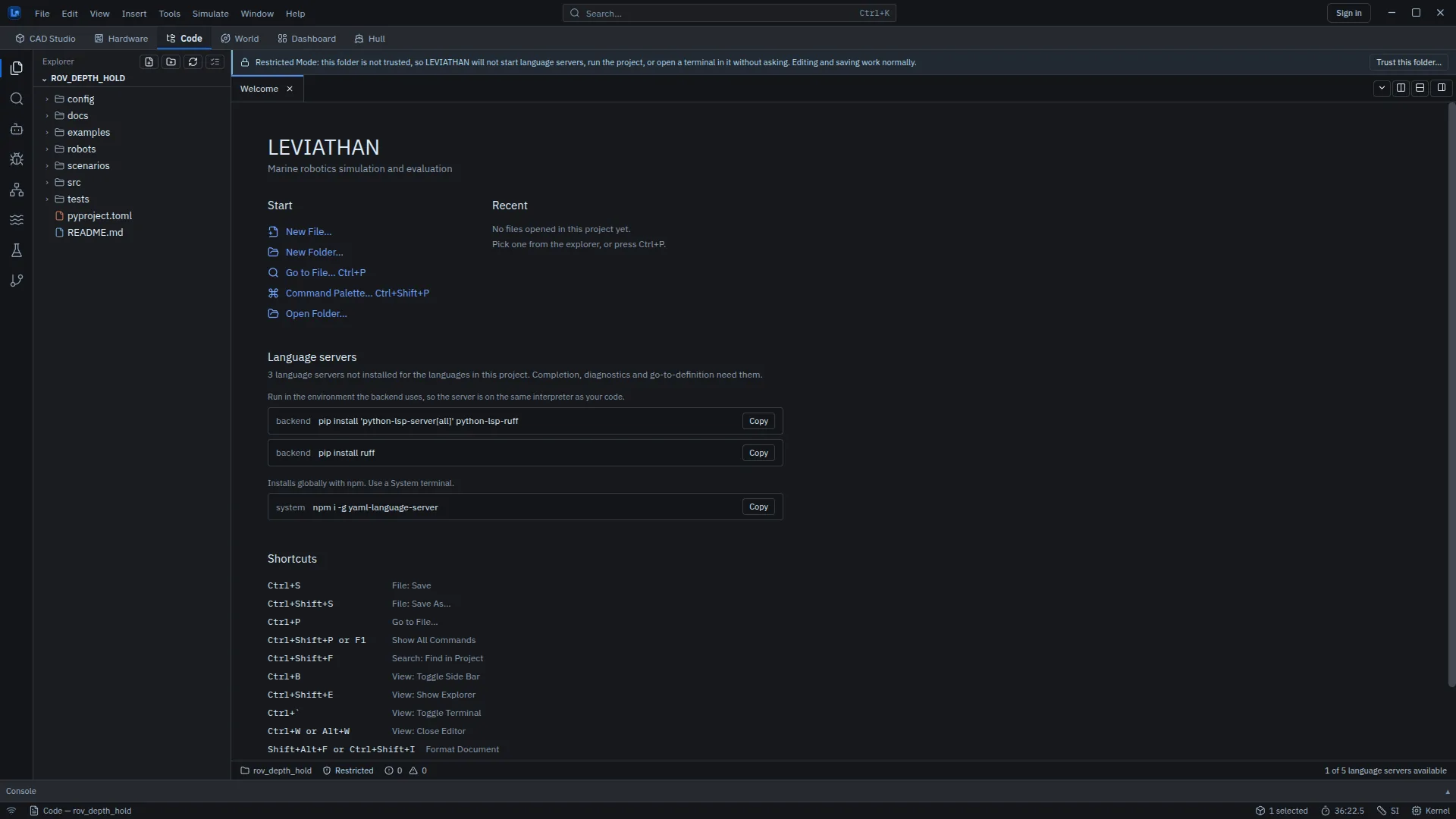
Trust this folder… explains exactly what trust allows and offers Trust folder or Keep restricted. Trust is tied to the project and to the folder's real location on disk: if the folder is moved, renamed or replaced, it is restricted again. Trust is not a sandbox; trusted code runs with your user rights.
Side-bar views
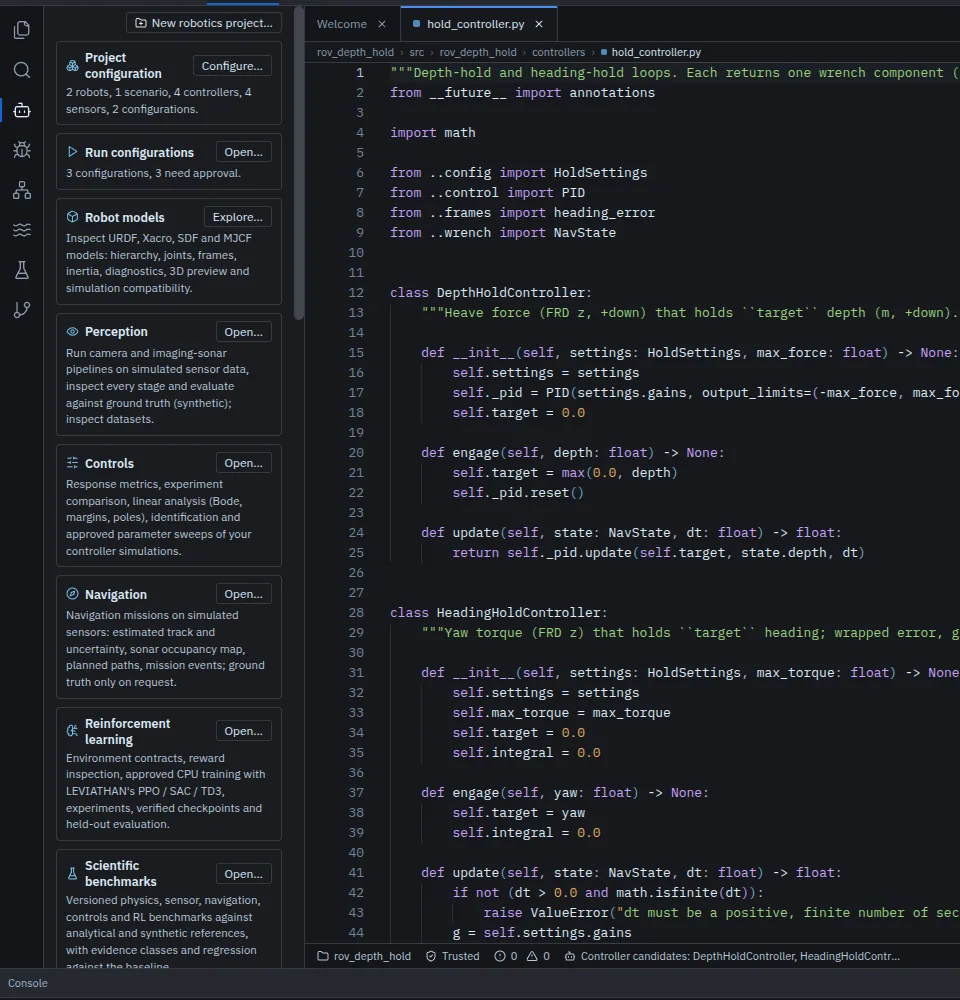
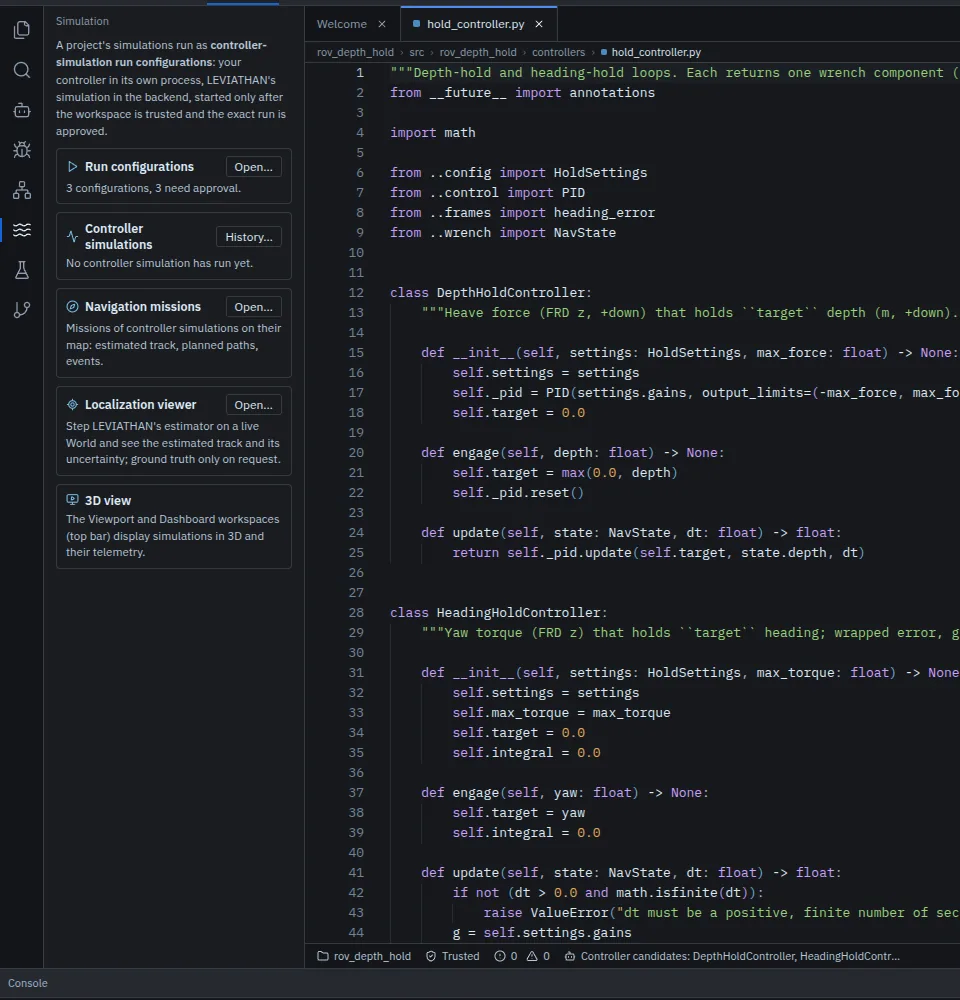
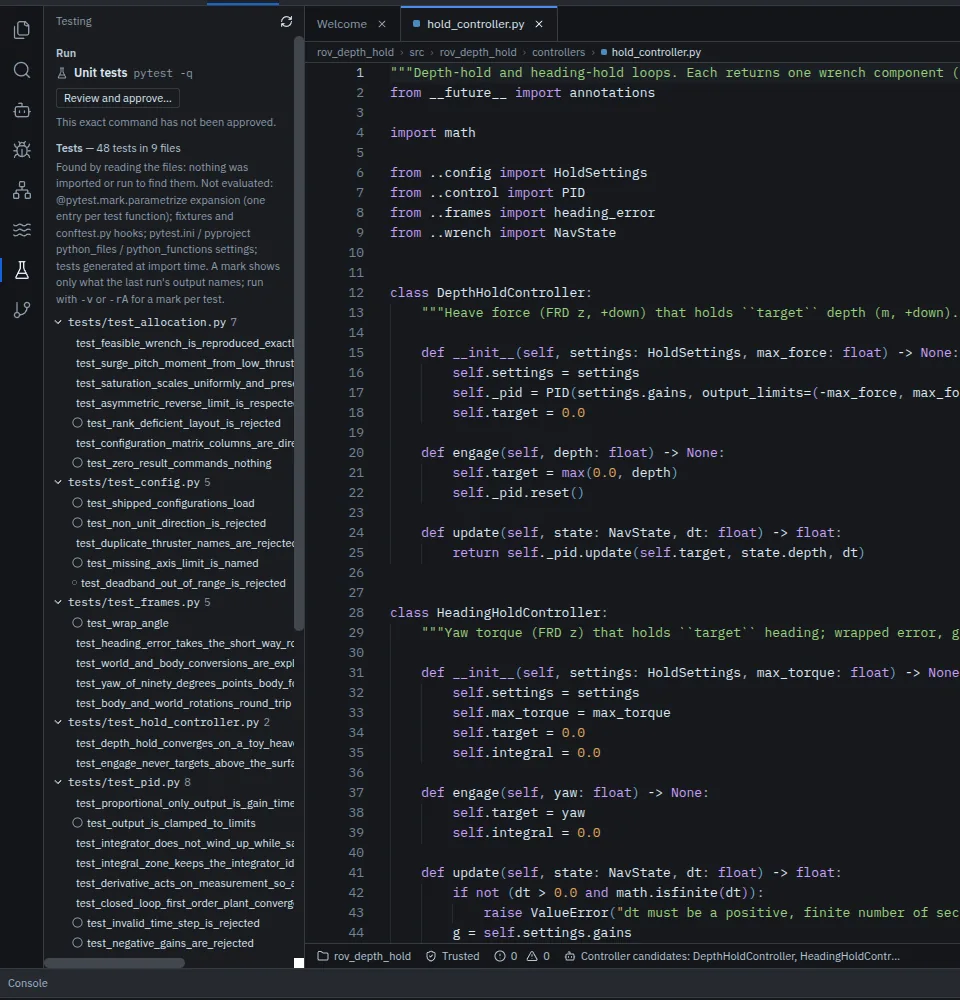
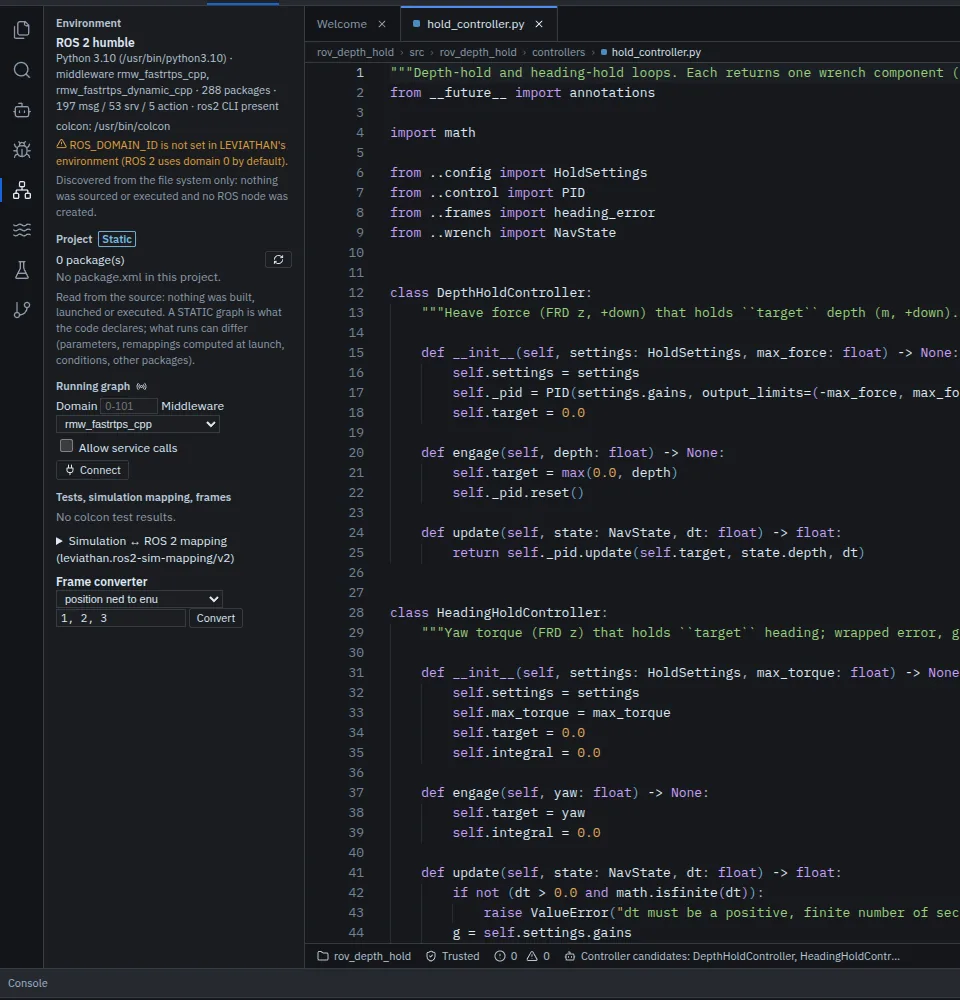
- Explorer: new file and folder, rename (F2), delete, and reload. Files up to 8 MB open; the tree shows up to 20,000 entries.
- Search: find text across the project (Ctrl+Shift+F), up to 200 results.
- Run and Debug: choose a debug package and a configuration, breakpoints with conditions, hit counts and log messages, and which exceptions stop the program.
- Source Control: status, side-by-side diffs, stage, unstage, commit (Ctrl+Enter) and history for a trusted folder that is already a Git repository. LEVIATHAN never runs repository hooks and does not push, pull, branch or create repositories.
Run configurations and approval
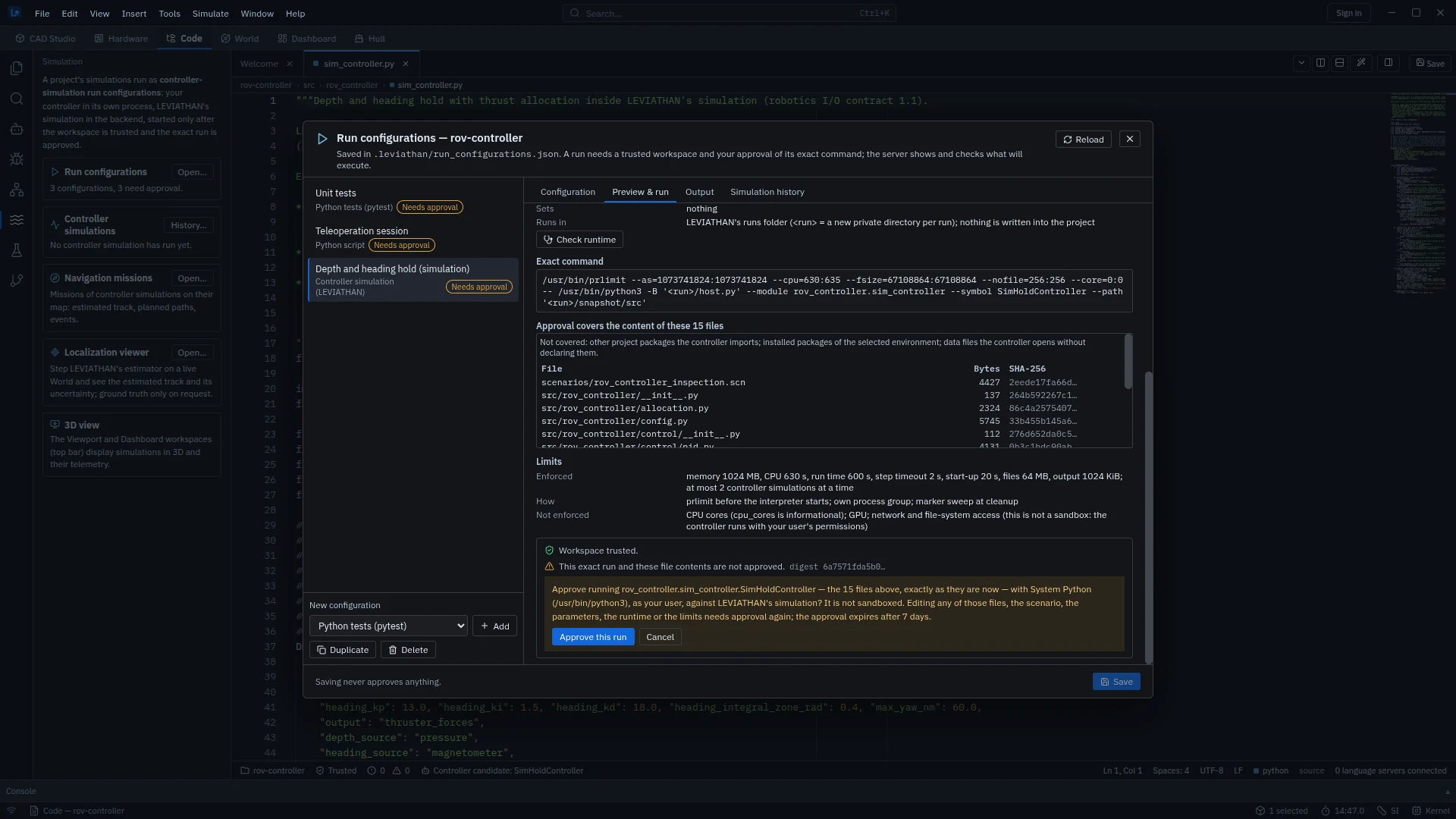
A project lists what can be run in .leviathan/run_configurations.json. Nothing runs until you have seen and approved the exact command.
| Runnable | Types |
|---|---|
| Yes | Python script; Python module; Python tests; evaluation script; CMake build; CTest; ROS 2 build; ROS 2 tests; ROS 2 launch; controller simulation |
| No (reference only) | Simulation preparation; firmware build and tests, which you run from a terminal you control |
The Run configurations dialog has four tabs: Configuration, Preview & run, Output and Simulation history. Approve this command records a SHA-256 fingerprint of the exact command, its working directory, environment and arguments, the folder's identity, and for a controller simulation every file the run uses. Change any of them and the configuration needs approval again; there is no "always allow". Controller-simulation approvals also expire after seven days. Saving a configuration never approves it.
Controller simulations
A controller simulation runs your controller in its own process, in lockstep with LEVIATHAN's physics in the simulation service: each step the controller receives sensor readings (or ground truth, if you choose) and returns thruster commands. The runtime is named explicitly in the configuration, so nothing is picked up from your shell's path. The run writes into a new private folder under LEVIATHAN's runs directory, not into the project.
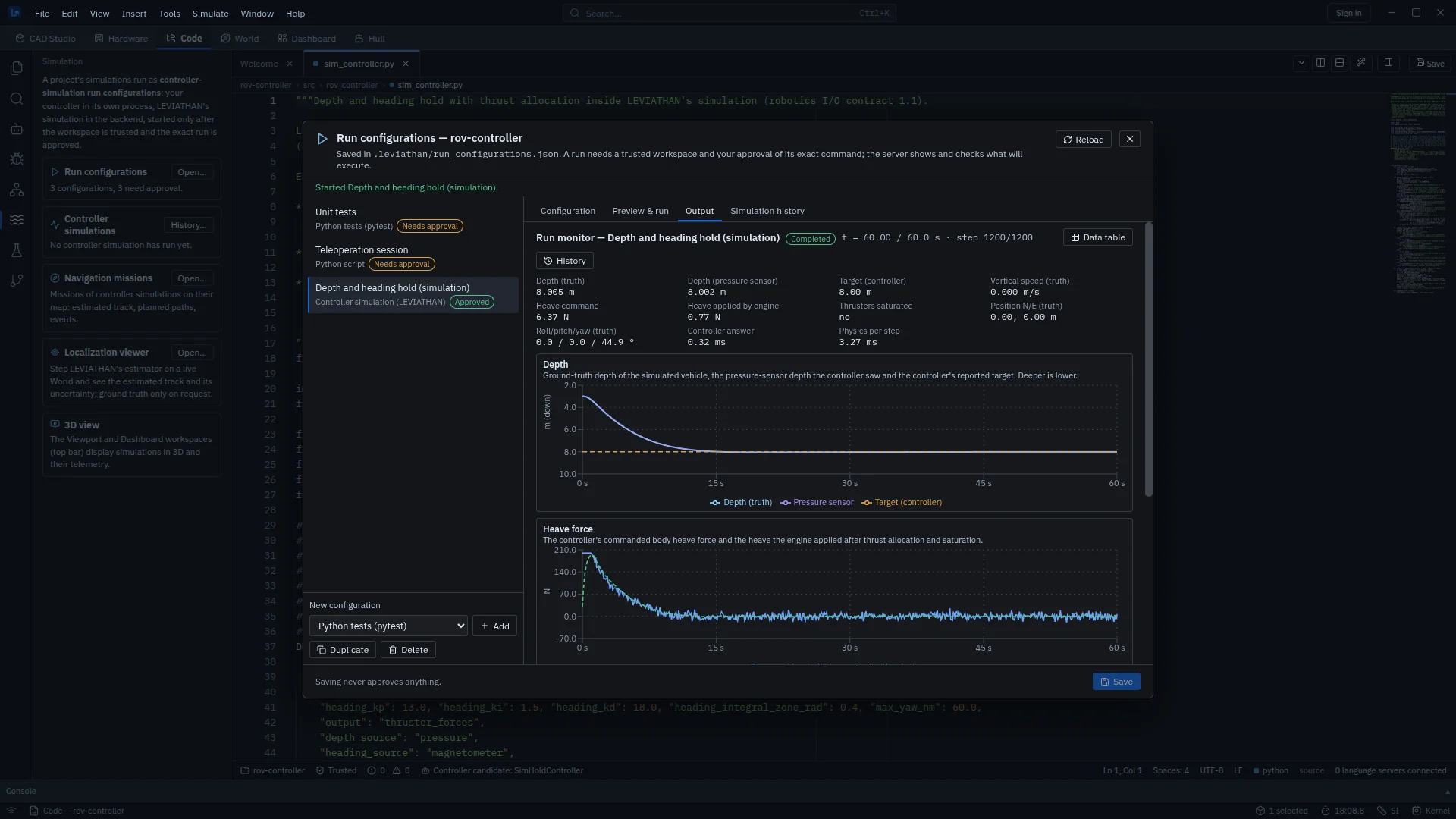
The same run opens in the Dashboard under Source ▸ Simulation runs, live while it runs, where the Control tuning layout reports rise time, settling time, overshoot, steady-state error and the integral error measures.
Terminals, language servers and debugging
- Terminal (Ctrl+`): three profiles, Backend env (the same interpreter as the simulation service), System and ROS 2, with new, stop and restart. In Restricted Mode a terminal opens only after Open terminal anyway.
- Language servers for Python, C and C++, CMake and YAML give completion, diagnostics, go to definition (F12), references (Shift+F12) and rename (F2). The welcome page lists which are missing and the command to install each; they start only in a trusted folder.
- Debugging of Python scripts, modules, tests and controller simulations: breakpoints (F9), continue (F5), step over (F10), into (F11) and out (Shift+F11), stop (Shift+F5). The debug package you choose is part of the run's fingerprint. Limits: 500 breakpoints, four sessions, four hours.
- Marine and robotics files are highlighted: ROS message, service and action definitions, mission and behaviour files, URDF and Xacro, CMake and TOML, with snippets.
- Recovery: unsaved edits are journalled every few hundred milliseconds and offered back after an unexpected exit, with Compare with disk.
Shortcuts
| Keys | Action |
|---|---|
| Ctrl+S, Ctrl+Shift+S | Save, Save As |
| Ctrl+P | Go to file |
| Ctrl+Shift+P, F1 | Editor commands |
| Ctrl+Shift+F | Find in project |
| Ctrl+B, Ctrl+Shift+E, Ctrl+Shift+G | Toggle side bar, Explorer, Source Control |
| Ctrl+\, Ctrl+1, Ctrl+2 | Split editor, focus first or second group |
| Ctrl+` | Toggle terminal |
| Ctrl+W or Alt+W | Close editor |
| Shift+Alt+F, Ctrl+G | Format document, go to line |
| F12, Shift+F12, F2 | Definition, references, rename (with a language server) |
| F9, F5, F10, F11 | Breakpoint, continue, step over, step into |
In the Code workspace, Ctrl+Shift+P and F1 open the editor's own command list; Alt+1 to Alt+6 still switch workspaces.
Where things are stored
| Data | Location |
|---|---|
| Project settings and run configurations | <project>/.leviathan/ |
| Trusted folders, run approvals | ~/.leviathan/trust.json, exec_approvals.json |
| Simulation runs | ~/.leviathan/runs/ |
| Recovered edits, session | ~/.leviathan/editor_recovery/, editor_session/ |